by | May 9, 2024 | News
What's changing
We're introducing several updates around framing controls for Google Meet hardware devices:
First, we're introducing an admin setting which will allow admins to choose a default framing option for their meeting spaces, ensuring every meeting begins with an optimally configured view. This will help your users jump right into their meetings without having to re-adjust camera settings from the previous meeting. This can be set individually for each device or via the bulk updates across your fleet.
Setting the default camera framing option in the Admin console
Next, we're adding framing support on whiteboards (Series One Desk 27 and Board 65) and remote controlled only Google Meet hardware devices, which will help ensure optimal camera framing on these devices.
Remote control framing user interfaceWhiteboard framing user interface
Finally, we're making a few small adjustments to how camera framing settings appear on hardware devices. For Meet on Android, we're removing the "Continuous framing" toggles and replacing them with a "Framing by" toggle. Depending on the third-party devices you're using, you'll see "Framing by Logitech","Framing by Huddly" or "Framing by Poly", for example. We're also changing the "Home" button to "Reset to default".
Updated camera framing settings on Meet hardware devices
Getting started
Admins: You can configure default camera framing options for individual Google Meet hardware devices by going to Devices > Google Meet hardware > [Device Name] > Device Settings > Default camera framing. Or you can
set the default camera framing option for multiple devices at once. End users: Visit the Help Centre to learn more about using device-based framing and using the Meet the touchscreen to control audio and video.
Rollout pace
Whiteboard and remote control device supportRapid and Scheduled Release domains: Gradual rollout (up to 15 days for feature visibility) starting on May 14, 2024
Admin control:Rapid and Scheduled Release domains: Gradual rollout (up to 15 days for feature visibility) starting on May 21, 2024
Availability
Available to all Google Workspace customers
Resources
by | May 9, 2024 | News
What's changing
We're now including breakout room attendance as part of attendance reporting in Google Meet. Attendance reports help meeting organisers keep track of who attended their meetings and for how long, which can be challenging during larger meetings or while presenting. This becomes more complicated when using breakout rooms to divide meeting participants into smaller groups. Adding breakout room attendance makes for a more comprehensive report and reduces the burden on meeting hosts to track breakout room attendance manually.
Getting started
Admins: Visit the Help Centre to learn more about
letting organisers get reports on meeting attendance.End users: When enabled by your admin, attendance reports will automatically be sent to the meeting host. Attendance reports for breakout rooms will be in their own tab in the spreadsheet. Visit the Help Centre to learn more about
attendance tracking.
Rollout pace
Availability
Available to Google Workspace
EssentialsBusiness PlusEnterprise Starter, Essentials, Standard, and PlusEducation Plus and the Teaching and Learning Upgrade
Resources
by | May 8, 2024 | News
This announcement was part of Google Cloud Next '24. Visit the Workspace Blog to learn more about the next wave of innovations in Workspace, including enhancements to Gemini for Google Workspace.
What's changing
We know it can be time consuming to perform repetitive tasks like updating data in a spreadsheet. In addition, maintaining the structure and format of the data can be difficult when there are multiple people updating the document.
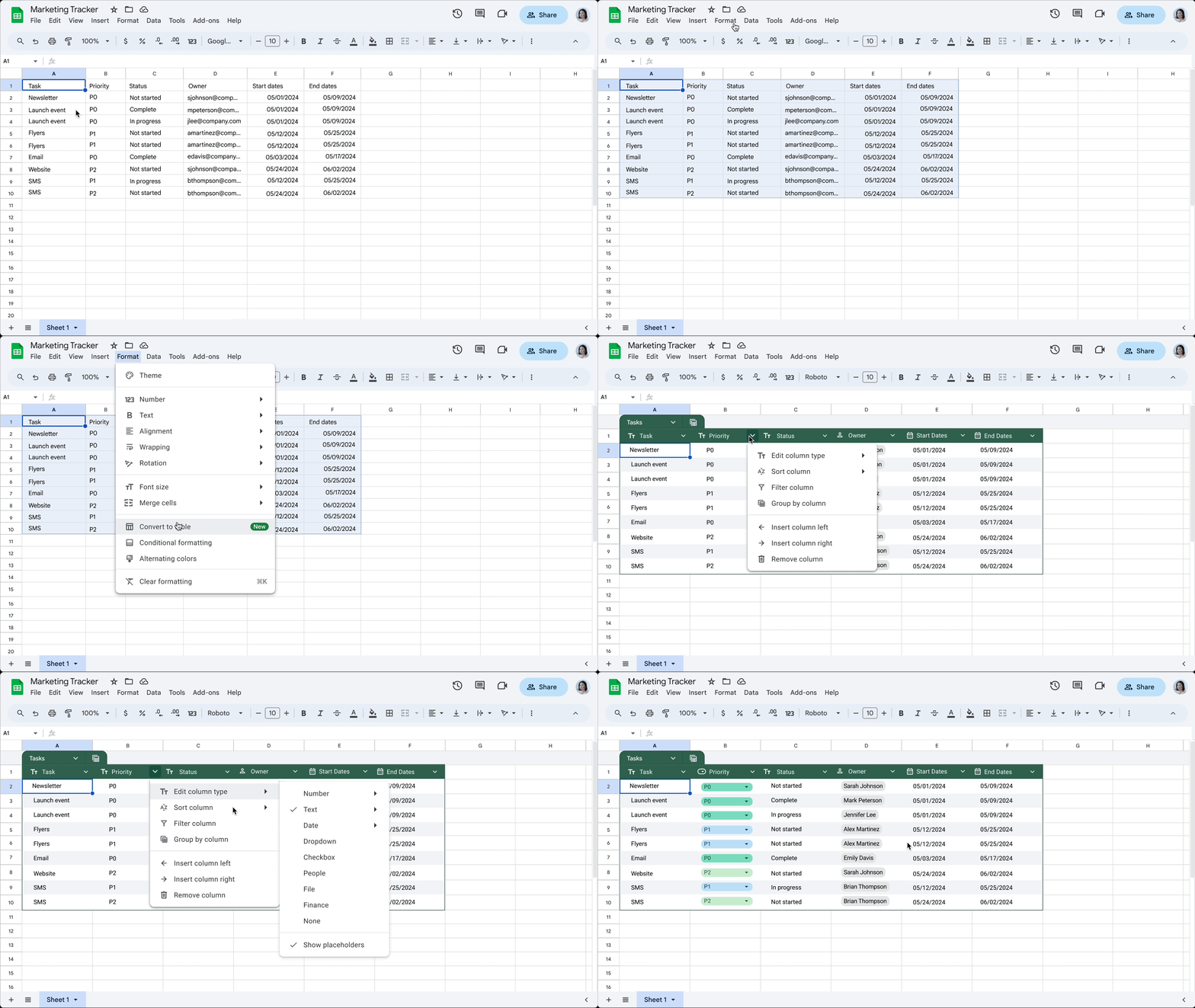
To help solve for this, we're excited to announce tables in Google Sheets. With tables, you can simplify and accelerate spreadsheet building by bringing format and structure to unorganised ranges. By selecting your data range and going to Format > Convert to table, Sheets now does the heavy lifting to format and organize data with a polished design including column types, filters, colour coding, dropdown menus and more.
Here's how using tables reduces the time you would usually spend manually formatting data:
Auto-applied formatting: When you convert your data to a table, Sheets automatically applies formatting to polish your data so that all inputs are properly aligned, reducing the need for manual changes. You can further customize your table by changing colours, readjusting the row height, and more. Column types: For each column, you can set the appropriate column type (e.g., date, currency, dropdown), and your table will make sure all entered data has the right formatting based on the column type. Data entered that does not align with a set column type will result in a warning. Unified menu: Above the table, you will see a menu option to manage table-level settings (e.g., adjust table range) and take action (e.g., create a filter view for your table). Table references: Table references are a special way to refer to a table or parts of a table in a formula. When you convert your data to a table, Sheets provides a name for the table and each column header. When you reference table elements by name, the references update whenever you add or remove data from the table. For example: Instead of explicit cell references: =COUNTIF(B2:B10, "P0"), you can use table references: =COUNTIF(Task_tracker[Priority], "P0"). When you are using tables, you'll also have access to our new type of view, group by, where you can aggregate your data into groups based on a selected column. For instance, you can decide to group all data at the same priority level in one place, as shown below.
We're also introducing pre-built tables that you can populate with common data types for everyday tasks like project management, inventory management, event planning and more. Now with pre-built tables, you never have to build a spreadsheet from scratch again.
Who's impacted
End users
Why it matters
Tables will transform the way teams organise their data, simplify data creation, and reduce the repetitive tasks needed to format, input, and update data. They also allow teams to confidently share data widely while maintaining its integrity and consistency.
Tables are well suited for tracking and organising information such as project tracking, event planning, and inventory management.
Getting started
Admins: There is no admin control for this feature. End users: Visit the Help Centre to learn more about
using tables in Google Sheets.
Rollout pace
Rapid Release domains: Extended rollout (potentially longer than 15 days for feature visibility) starting on May 8, 2024, with expected completion by May 30, 2024
Scheduled Release domains: Gradual rollout (up to 15 days for feature visibility) starting on June 6, 2024
Availability
Available to all Google Workspace customers, Google Workspace Individual subscribers, and users with personal Google accounts
Resources
by | May 7, 2024 | News
What's changing
To ensure customers with Google Meet hardware devices have sufficient notice about cancelled or expired device subscriptions, we're adding notifications in the Admin console. Depending on your subscription details and timeline, you will see:
A warning banner in the Google Meet hardware section of Admin console when your Google Meet hardware subscription has expired and suspension is imminent. It will include the suspension date.
A warning banner in the Google Meet hardware section of Admin console when your Google Meet hardware subscription has been suspended.
An on-device suspension warning. The on-device warning will be ON by default and will begin to appear for customers with imminent suspensions starting May 29, 2024. To turn the on-device warning OFF, go to Admin console > Google Meet hardware > Settings > On-device suspension warning > Prevent devices from displaying on-screen suspension warnings. If this box is checked, devices will not display an on-device warning during the 3-day period prior to subscription suspension.
On-device suspension warning in GMh Admin Console
Who's impacted
Admins and end users
Why it's important
These notifications ensure admins are aware of potential subscription and/or functionality changes for the Google Meet hardware devices in their domain.
Additional details
The 'Provisioning Status' column and filter will be removed from the Device list page.
Getting started
Admins: For each Google Meet hardware device you purchase, you also purchase and assign a software licence to that device. Licenses allow your device to work with the Google Meet service and gain access to device management tools in the Google Admin console. Visit the Help Centre to learn more about
licensing.End users: If an on-device suspension warning occurs, people in the room will see a warning when the device is 3 days away from suspension.
On-device suspension warning on GMh device
Rollout pace
Availability
This update impacts all Google Workspace customers with Meet hardware devices.
Resources
by | May 7, 2024 | News
What's changing
In March, we introduced the ability to insert
preset dropdown chips that are configured for common use cases like priority or review statuses in Google Sheets. Today, we're adding a new feature that helps you quickly convert ranges of data into dropdown chips in bulk.
If you have a column of data that includes a variety of data values (e.g., different project statuses like on track, paused, completed), Sheets will show a "Convert to dropdown chips" suggestion when you click into your data range. By hovering over that indicator, you can preview the suggestion and then convert to dropdown chips in one click.
Getting started
Admins: There is no admin control for this feature. End users: To insert dropdown chips on your own, type "@" followed by "dropdown. To turn off this feature, go to Tools > Suggestion controls > (deselect) Enable dropdown chip suggestions. Visit the Help Centre to learn more about
inserting smart chips in your Google Sheets.Rollout pace
Rapid Release domains: Extended rollout (potentially longer than 15 days for feature visibility) starting on May 7, 2024, with expected completion by May 30, 2024
Scheduled Release domains: Gradual rollout (up to 15 days for feature visibility) starting on May 30, 2024
Availability
Available to all Google Workspace customers, Google Workspace Individual subscribers, and users with personal Google accounts
Resources
by | May 6, 2024 | News
What's changing
We're simplifying how users turn on 2-Step Verification (2SV), which will streamline the process, and make it easier for admins to enforce 2SV policies in their organisations.
Here are some of the important changes with this change:
Users may add "second step methods" (such as Google Authenticator, or a hardware security key) before turning on 2SV. This is particularly helpful for organisations using Google Authenticator (or other equivalent time-based one-time password (TOTP) apps). Previously, users had to enable 2SV with a phone number before being able to add Authenticator.
Users with hardware security keys will have two options to add them to their account on the "Passkeys and security keys" page:'Use security key": this registers a FIDO1 credential on the security key even if the key itself is FIDO2 capable.'Create passkey and follow instructions to "use another device"': this registers a FIDO2 credential on the security key, and will require users to use the key's PIN for local verification (this creates a passkey on the security key).Note: users will continue to be asked for their password along with their passkey if the admin policy for "Allow users to skip passwords at sign-in by using passkeys" remains turned OFF (this is the default configuration).
If an enrolled 2SV user turns 2SV OFF from their account settings, their enrolled second steps (such as backup codes, Google Authenticator, or second factor phone) are not automatically removed from their account. Before this change all second factors would be removed when the user turned 2SV off. Note: When an administrator turns off 2SV for a user from the Admin console or via the Admin SDK, the second factors will be removed as before, to ensure user off-boarding workflows remain unaffected
Getting started
Admins: Visit the Help Centre to learn more about how to protect your business with 2-step verification.End users: Visit the Help Centre to learn more about turning on 2-step verification.
Rollout pace
Availability
Available to all Google Workspace customers and users with personal Google accounts
Resources
by | May 6, 2024 | News
What's changing
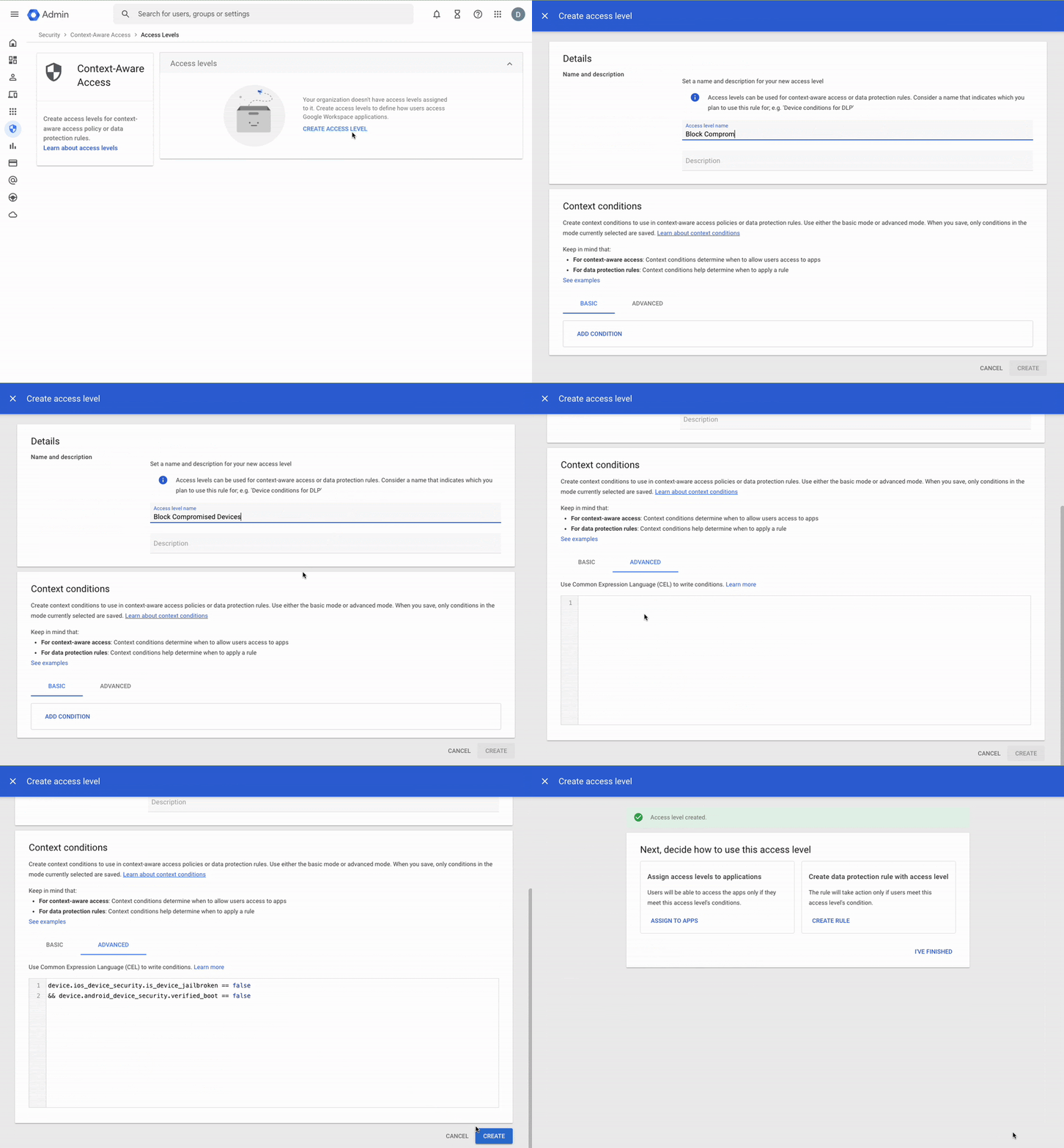
Using context-aware access, you now have the option to automatically block access to Google Workspace data from compromised Android and iOS devices. A device may be counted as compromised if certain unusual events are detected, including devices that are jailbroken, bypassing of security controls, modification of restricted settings, and more.
Creating a new rule to block compromised mobile devices
Blocking message for compromised iOS and Android devices
Getting started
Rollout pace
Block access to Google Workspace data: available immediately for both Android and iOS.Remediation message: available immediately for Android, available on May 9, 2024 for iOS.
Availability
Available to Google Workspace
Enterprise Standard and PlusEducation Standard and PlusFrontline StandardEnterprise Essentials PlusCloud Identity Premium
by | May 4, 2024 | News
New updates
There are no new updates to share this week. Please see below for a recap of published announcements.
Previous announcements
The announcements below were published on the Workspace Updates blog earlier this week. Please refer to the original blog posts for complete details.
Updated keyboard shortcuts and first-letters navigation now available on Google Drive web
First-letters navigation enables users to quickly and easily navigate a list of items in Drive via keypress. Users can move focus within a file list in Drive by pressing the first letter(s) of the file's name. Pressing the same letter again will navigate to the next item starting with that letter. | Learn more about
first-letter navigation.Configure managed iOS apps for your users' using Google Mobile Device Management
Directly from the Admin console, admins can remotely set custom configs for managed iOS apps on end-user devices for their enterprise using Google Mobile Device Management. Managed configurations are applied using XML property lists and the same app can be configured differently across different domains, groups, or organisational units (OUs). | Learn more about
configuring managed iOS apps for users. Available in open beta: Build AppSheet automations using Google Forms
We're introducing an integration between AppSheet and Google Forms. With this update, Google Forms submissions can act as event triggers within AppSheet Automations. These automations can then take many different actions, such as sending notifications or approval requests to Gmail or Google Chat, or even calling a custom Apps Script function. | Learn more about
AppSheet automations using Google Forms.Google Meet increases support for ultra-low latency live streaming to the first 25,000 viewers
For Google Workspace editions that support 100,000 viewers, we're increasing the availability of the Google Meet ultra-low latency viewing experience for live streamed meetings from the first 10,000 viewers to the first 25,000 viewers. All additional viewers will have the standard live streaming experience. This update is available for live streams within your organisation on web and mobile. | Learn more about
increased support for ultra-low latency live streaming. Introducing AppSheet Organisations
We're making it easier to manage your AppSheet users with the introduction of AppSheet Organisations. An AppSheet organisation creates organisation administrators with a centralised tool to manage all of the teams in the organisation and delegate team management responsibilities to team administrators. Learn more about
AppSheet Organisations.
Hide tiles without video during Google Meet calls
We've added the option to hide non-video tiles, so that users can avoid clutter on their screen if they are interested to only see the participants with their videos on. This option can help reduce screen clutter and focus on video-enabled participants, meanwhile users with their videos off can be shown on screen if they speak. | Learn more about
hiding video tiles.
Rapid Release Domains:
Scheduled Release Domains:
Rapid and Scheduled Release Domains:
For a recap of announcements in the past six months, check out What's new in Google Workspace (recent releases).
by | May 2, 2024 | News
What's changing
We've added the option to layouts, so that users can change their layouts to avoid cluttering the screen if they are interested to only see the participants with their videos on. This option can help reduce screen clutter and focus on video-enabled participants, meanwhile users with their videos off can be shown on screen if they speak . Note that this feature, same as other layouts options, is only specific to your meeting view and does not impact what other participants see or set for their layouts during the meeting.
To hide non-video tiles, go to Settings > Change layout > Hide tiles without video.
Rollout pace
Availability
Available to all Google Workspace customers and users with personal Google accounts
Resources
by | Apr 18, 2024 | News
This announcement was part of Google Cloud Next '24. Visit the Workspace Blog to learn more about the next wave of innovations in Workspace, including enhancements to Gemini for Google Workspace.
What's changing
Google Workspace developers registered in our
Developer Preview Program have been able to build Chat apps that can subscribe to Chat events using the Google Workspace Events API. We're pleased to announce that as of today, this functionality is now available to all Workspace developers.
Chat apps can receive events about the following types of changes in Google Chat:
New membershipsNew or removed reactions to a messageNew, updated, or removed members in a spaceChanges to a space, such as the space name or description
Subscribing to these notifications allows Chat apps to respond to important actions in real-time. For details, see
subscribe to Google Chat events in the Google Workspace Events API documentation.
Getting started
Rollout pace
Availability


.png)




%20(1).png)