por | Oct 7, 2024 | Noticias
Qué está cambiando
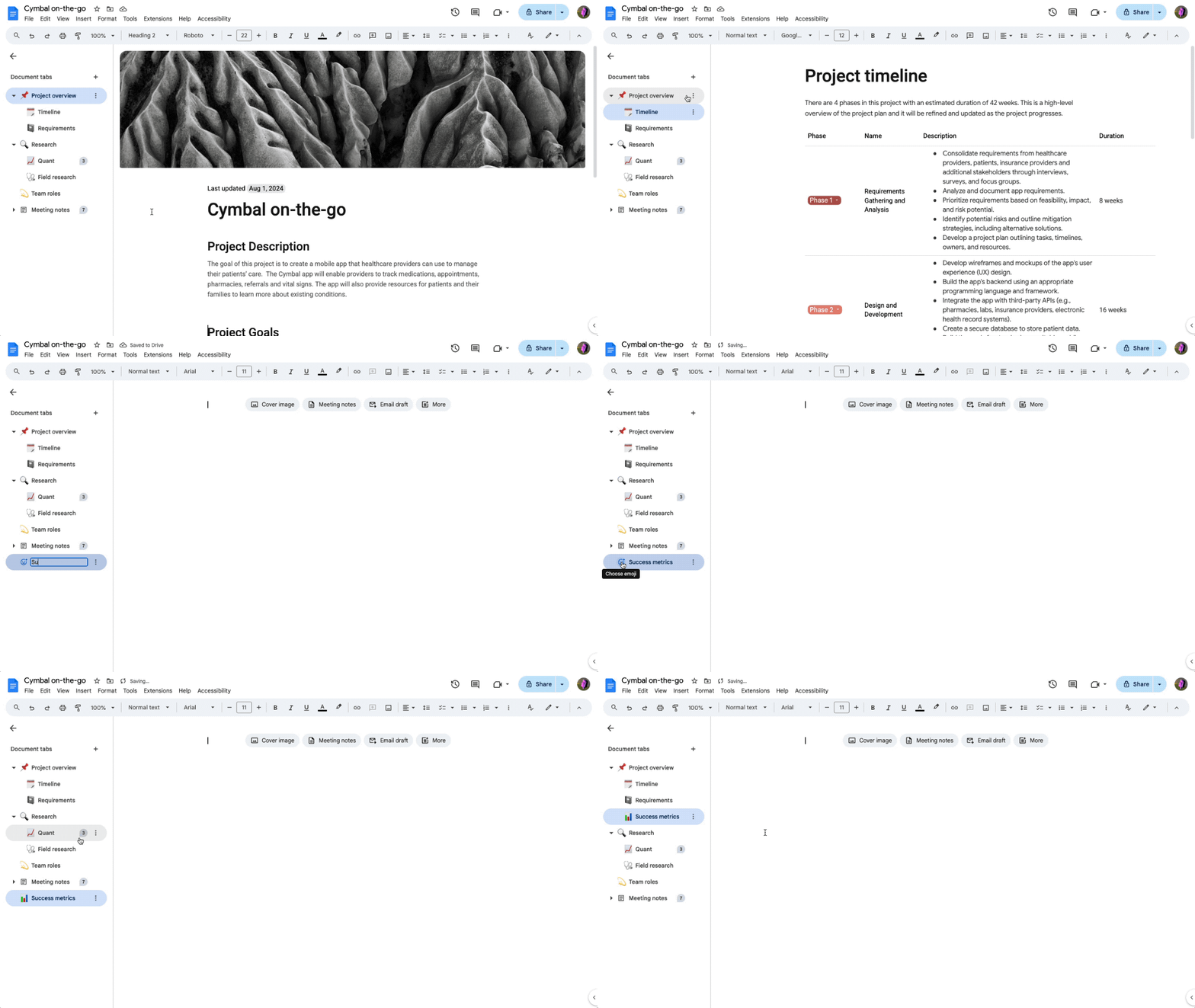
We’re excited to introduce document tabs in Google Docs, a new feature to help you organize longer documents, centralize information, and make collaboration easier.
You can now use tabs to draft and build content in a way that makes it possible for you to find what you’re looking for quickly and stay on task. Plus, readers can navigate through your document with ease and focus on sections that matter most to them.
Tabs in Docs can be particularly useful when you need to break down long, structured documents into smaller, more digestible sections. For example:
A marketing manager can build a campaign brief using different, focused tabs for budget, goals, and creative ideas. A sales leader creating pitch templates can now have dedicated tabs for each industry or territory. A customer service representative can create tabs for each solution to address common customer service issues. A project manager can create a tab for budget, roles and responsibilities, goals, and key dates so that their working team can stay on track. A team manager can keep a record of routine documentation, such as recurring meeting notes, agendas, performance reviews, and quarterly planning updates. Within each tab, you can also create subtabs to add even more structure to your document. For instance,
a budget tab could include subtabs for travel expenses and agency fees, or a team makeup tab could include subtabs explaining each team’s roles and responsibilities.
A quién afecta
Usuarios finales
Por qué utilizarlo
Structuring your Docs with tabs helps to organize longer documents, brings together existing documents more cohesively, and makes collaboration easier.
Más información
Users have the option to set an emoji for each tab to visually represent its content and make navigation easier. The emoji will show to the left of the tab title in the left panel, which replaces the default article icon.
Para empezar
Admins: There is no admin control for this feature. End users: For documents containing 2 or more tabs and new documents, the left panel will open by default to let users navigate and manage tabs easily. When the left panel is closed, users can open it at all times by clicking on the Tabs & outline icon in the top left corner. You can also share links to specific tabs rather than sharing the link to an entire document by clicking on the three dots menu for a given tab > Copy link. Visit the Help Center to learn more about
using document tabs in Google Docs.Ritmo de implantación
Disponibilidad
Disponible para todos los clientes de Google Workspace, los suscriptores de Google Workspace Individual y los usuarios con cuentas personales de Google.
Recursos
por | Oct 8, 2024 | Noticias
Qué está cambiando
A principios de año anunciamos
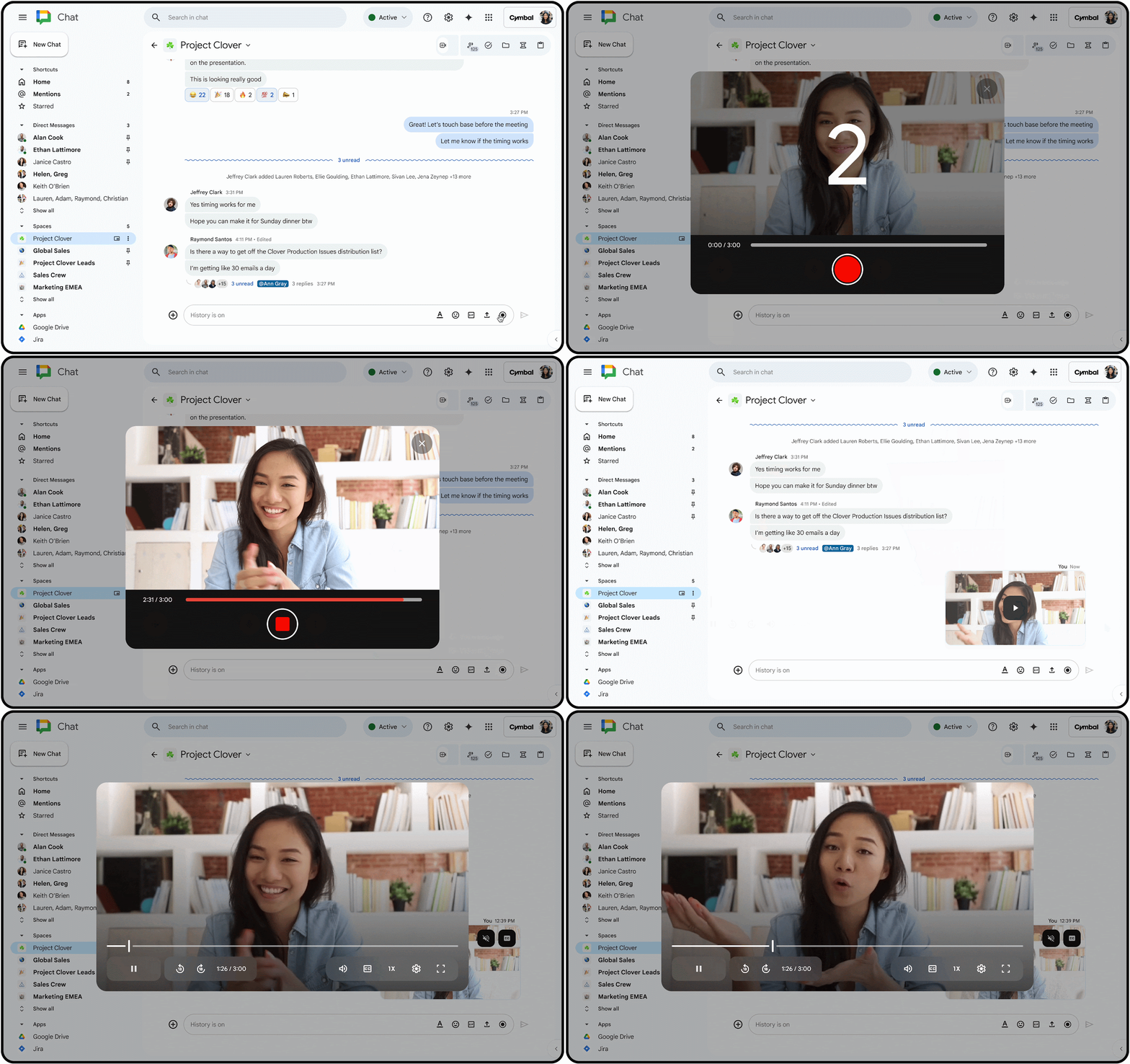
voice messages in Google Chat, giving users a new way to communicate with others more effectively. Today, we are introducing video messages in Chat, a new capability that helps you save time, convey more information, add tone or emphasis, and can be useful in a number of scenarios, such as:
Sales or customer support team members sending video updates about new features or account changes. Executives sharing company-wide announcements or strategic updates, fostering transparency and engagement across the organization. Team members sending a video with outstanding updates in lieu of attending a live meeting.
A quién afecta
Usuarios finales
Por qué es importante
This update offers users with more flexibility in how they communicate within Chat.
Más información
Video message cannot be recorded on the following browsers and OS: ChromeOS, Linux and Firefox.
Para empezar
Ritmo de implantación
Disponibilidad
Disponible para Google Workspace:
Business Starter, Standard, Plus Enterprise Standard, Plus Essentials Starter, Enterprise Essentials, Enterprise Essentials Plus Nonprofits Frontline Starter, Standard
Recursos
por | Oct 8, 2024 | Noticias
Qué está cambiando
Admins now have the option to configure meeting recordings, meeting transcripts, and “take notes for me”* as on by default for newly created meetings. Meeting hosts and co-hosts can edit these settings in the Calendar invite, as well as turn these artifacts off during the meeting. We hope these settings help ensure artifacts are created for specific meetings or series of meetings, like sales calls or town hall meetings, without relying on manual intervention. When these meeting artifacts are turned on, attendees will be notified when they join the green room and when they join the meeting.
Apps > Google Workspace > Google Meet > Meet video settings > Automatic transcription
Apps > Google Workspace > Google Meet > Meet video settings > Automatic recording
Apps > Google Workspace > Google Meet > Meet video settings > Automatic note taking
*”Take notes for me” requires a Gemini add-on. See below for more information.
Para empezar
Ritmo de implantación
Disponibilidad
Available to Google Workspace Business Standard and PlusEnterprise Essentials, Enterprise Essentials PlusEnterprise Standard and PlusEducation Plus, and the Teaching and Learning Upgrade
“Take notes for me” requires a Gemini Business, Enterprise, Education, Education Premium, or AI Meetings & Messages add-on.
por | Oct 8, 2024 | Noticias
Qué está cambiando
A principios de este año, we introduced the ability to send voice messages in Google Chat to help users save time, convey more information, and emphasize the most important information for the message receiver. To build upon this highly requested communication feature and increase accessibility in Chat, we’re excited to announce voice messages transcription.
Starting today, users will be able to see an automatic transcription of voice messages in Chat on web and mobile. This update enables content consumption in a user’s preferred format or the format that is most convenient at that particular moment.
Para empezar
Ritmo de implantación
Android, iOS, and web:
Disponibilidad
Disponible para todos los clientes de Google Workspace y suscriptores de Google Workspace Individual
Recursos
por | Oct 8, 2024 | Noticias
Qué está cambiando
Starting today, users can add
chips inteligentes that pull information from third party apps into Sheets. Users can also paste third-party chips inserted in Docs directly into a spreadsheet.
Para acceder
chips inteligentes de tercerosun administrador o usuario debe instalar primero el complemento de un socio desde la sección
Google Workspace Marketplace. After that, simply paste a link from the third-party source into your spreadsheet and click “tab”. You will then see a smart chip populate in your sheet that previews critical information from the app, right in the flow of your work.
Para empezar
Admins: You can only create and use a third-party smart chip if a developer has enabled it for that application. You will also need to install or allowlist the specific add-on for that application to ensure end users have access. Visit the Help Center to learn
how to install Marketplace apps in your domain y
managing Google Workspace Marketplace apps. Desarrolladores: visiten el Centro de ayuda para obtener más información sobre
how to make third-party smart chips. End users: Specific add-ons for third-party applications must be installed by your admin or allowlisted for you to use this feature. Visit the Help Center to learn more about
inserting third-party smart chips from other applications. To convert a link to a third-party into a smart chip, you can either: Paste a link from the third-party source into your spreadsheet and select “tab” Replace the link with a chip within the hover card that appears when you place your cursor over the link. Users who have installed a third-party add-on will see a hovercard of information defined by the third-party upon hovering over the chip:
Ritmo de implantación
Disponibilidad
Disponible para todos los clientes de Google Workspace, suscriptores individuales de Workspace y usuarios con cuentas personales de Google.
Recursos
por | Oct 9, 2024 | Noticias
Qué está cambiando
Para empezar
Ritmo de implantación
Disponibilidad
Disponible para todos los clientes de Google Workspace
Recursos
por | Oct 11, 2024 | Noticias
Qué está cambiando
In July 2024, we introduced Enterprise Content Delivery Network (eCDN) support for Google Meet, which helps reduce live streaming bandwidth consumption to a fraction of the traffic volume. Today, we are announcing enhancements that will give admins greater insight to better optimize their eCDN configuration.
eCDN is deployed according to settings and rules configured by admins to control and optimize peering across their network topology. Beginning today, admins can turn on client debug logs in the Admin console to get detailed information and better understand how configurations affect the way clients use eCDN in different parts of their private network. This information includes:
Device status: information about the client’s current state.Network: information about the network assigned to the client (potentially through a custom rule configuration).Stats: performance information about how the client has used the eCDN such as transfer rates and peer connections.
A quién afecta
Admins
Por qué utilizarlo
Understanding how peering rules affect the way clients use eCDN is vital for achieving bandwidth savings targets. Access to detailed information lets administrators deploy eCDN faster across their subnets while all the time being able to monitor that their rules have the intended effect. Additionally, in cases where support is needed, the information contained in the debug logs helps with troubleshooting to resolve issues faster.
por | Oct 11, 2024 | Noticias
Qué está cambiando
Under the umbrella of our data migration services, we’re introducing a new file migration service for Admins to transfer files between OneDrive data to Google Drive for up to 100 users at a time. Available directly under the Admin console, super admins can now migrate all your files and folders, as well as their corresponding access permissions with shared members. Starting a migration entails a few simple steps:
First, connect to the Microsoft OneDrive account you want to transfer files fromNext, set the migration scope by identifying the email addresses of Microsoft OneDrive users that you wish to migrate.Finally, create an identity map to connect users on the source account to users on the target account.
Admin console > Data > Data import & export > Data migration > Go to data migration > Microsoft OneDrive
The console will provide reporting on the migration progression and metrics such as how many users have been processed, how many files have been migrated or skipped, and more. You’ll also have the option to export a migration report to further investigate errors and access troubleshooting tips directly from the tool. You can also make
delta updates to migrate any new files that were added or updated after a previous migration.
Example of a completed migration
A quién afecta
Admins
Por qué utilizarlo
Data migrations play a critical role in ensuring a seamless transition between various tools and Google Workspace for both admins and end users. Workspace now offers a first party solution that allows our customers to migrate their data at scale, and without the need for third-party workarounds or on-premises infrastructure. This will significantly reduce the overall migration process and onboarding time to Google Workspace, saving customers considerable administrative and infrastructural costs. Additionally, it ensures minimal interruption for end users, who will be able to access all of their files and documents within Google Drive.
Para empezar
Admins: This feature is available in open beta – no additional sign-up is required to use the feature. This migration can only be performed by super admins. Visit the Help Center to learn more about
migrating files from a OneDrive account.End users: There is no end user action required.
Disponibilidad
Disponible para Google Workspace
Business Starter, Standard, and PlusEnterprise Standard and PlusEducation Fundamentals, Standard, Plus, and the Teaching and Learning UpgradeEssentials Starter and Essentials,Enterprise Essentials, and Enterprise Essentials PlusNonprofits
Recursos
por | Oct 12, 2024 | Noticias
1 New update
A menos que se indique lo contrario, las funciones que se indican a continuación están disponibles para todos los clientes de Google Workspace y se han lanzado completamente o están en proceso de despliegue. Las implantaciones no deberían tardar más de 15 días laborables en completarse si se lanzan a ambos tipos de clientes. Liberación rápida y programada al mismo tiempo. Si no es así, cada etapa de la implantación no debería tardar más de 15 días laborables en completarse.
Create an email for a Google Chat space from the Admin console
A principios de este año, we introduced a new feature that enables users to send emails to spaces in Google Chat. When this launched, existing Google Group policies determined by the domain admin were respected. For example, if the admin restricted group creation in their organization, users would also be restricted from generating emails for spaces in Chat. To improve upon this experience, we’re happy to announce that admins can now create an email for a space from the Admin console. To do so, navigate to Google Chat > ‘Manage spaces’ > select a space > ‘Space settings’ > click ‘Generate email’ to create an email address for the space. In addition, email conversations sent to spaces will now show replies in a thread instead of as separate cards in the message stream. | The Admin console update is rolling out now to
Ámbitos de liberación rápida y liberación programada. Threading for emails in spaces will rollout to
Ámbitos de liberación rápida y liberación programada starting on October 17, 2024. | Available to all Google Workspace customers. | Visit the Help Center to learn more about
envío de correos electrónicos a espacios en Chat.
Generating an email in the Admin console
Anuncios anteriores
Los anuncios que figuran a continuación se publicaron en el blog Actualizaciones del espacio de trabajo a principios de esta semana. Consulte las entradas originales del blog para obtener más información.
New document tabs in Google Docs provide a better way to organize your documents
We’ve introduced document tabs in Google Docs, a new feature to help you organize longer documents, centralize information, and make collaboration easier. | Learn more about
tabs in Docs. New and improved widgets for Google Chat app cards
Ask responders for a rating in Google Forms
To add to the list of question types that users can respond to in Google Forms and enable the collection of feedback in a more engaging way, we’re introducing a rating question type. | Learn more about
rating questions in Forms.Send video messages in Google Chat
We’re introducing video messages in Chat, a new capability that helps you save time, convey more information, add tone or emphasis, and can be useful in a number of scenarios. | Learn more about
video messages in Chat. Transcriptions now available for voice messages in Google Chat
Users will now be able to see an automatic transcription of voice messages in Chat on web and mobile. | Learn more about
Chat transcriptions. Automate meeting recording, transcripts and notes for your Google Meet meetings
Admins now have the option to configure meeting recordings, meeting transcripts, and “take notes for me” as on by default for newly created meetings. Meeting hosts and co-hosts can edit these settings in the Calendar invite, as well as turn these artifacts off during the meeting. | Learn more about
automating meeting recordings, transcripts and notes for meetings. Third-party smart chips now available in Google Sheets
Users can now add smart chips that pull information from third party apps into Sheets, and also paste third-party chips inserted in Docs directly into a spreadsheet. | Learn more about
third-party smart chips in Sheets. Easily find and connect to featured partner apps from the Google Workspace Marketplace
We’re adding a new category within the Google Workspace Marketplace: Featured partner apps. Here, you can quickly find and install the most popular Google Workspace apps. | Learn more about
partner apps Marketplace.
Available in open beta: Easily migrate files from Microsoft OneDrive to Google Drive
Under the umbrella of our data migration services, we’re introducing a new file migration service for Admins to transfer files between OneDrive data to Google Drive for up to 100 users at a time. | Learn more about
migrating files from OneDrive to Google Drive.Improve Google Meet livestreaming experience with more insight on eCDN performance
We’re enhancements that will give admins greater insight to better optimize their eCDN configuration. | Learn more about
Meet livestreaming.
Lanzamientos finalizados
Dominios de liberación rápida:
Dominios de liberación programada:
Dominios de liberación rápida y programada:
Para recapitular los anuncios de los últimos seis meses, consulte Novedades de Google Workspace (versiones recientes)).
por | 5 de agosto de 2024 | Noticias
Qué está cambiando
Cuando tus usuarios acceden a aplicaciones de terceros mediante la opción "Iniciar sesión con Google" (inicio de sesión único) o utilizan OAuth para compartir sus datos con esas aplicaciones, puedes controlar el acceso que esas aplicaciones tienen a los datos de Google de tu organización mediante
controles de acceso a la aplicación.
Actualmente, los administradores pueden configurar las aplicaciones de terceros como "De confianza", lo que les da acceso a todos los ámbitos de OAuth, o como "Limitadas", lo que les da acceso solo a los ámbitos de los servicios de Google que no están restringidos. A partir de hoy, ofrecemos a los administradores otro nivel de control granular para las aplicaciones de terceros. En concreto, ahora puedes configurar las aplicaciones para que estén limitadas por los siguientes elementos seleccionados
Ámbitos de OAuth 2.0 para las API de Googlecomo
Drive o
Gmail ámbitos. Esto ayuda a garantizar que estas aplicaciones no obtengan acceso adicional sin el consentimiento del administrador en función de los nuevos ámbitos de la API que puedan solicitar en el futuro, manteniendo el acceso a los datos limitado únicamente a lo que los administradores consideren absolutamente necesario.
Para empezar
Administradores: Para gestionar el acceso a las aplicaciones, en la consola de administración vaya a Seguridad > Controles de API > Controles de acceso a aplicaciones. Visite el Centro de ayuda para obtener más información sobre
controlar qué aplicaciones internas y de terceros acceden a los datos de Google Workspace.
Ritmo de implantación
Disponibilidad
Disponible para todos los clientes de Google Workspace, así como para los clientes de Cloud Identity Free y Premium.
Recursos