por | Set 10, 2024 | Noticias
What’s changing
Earlier this year, we improved upon the file management experience in Google Chat spaces by creating the Shared tab, a central place to manage all conversation-related artifacts including files, links and media. Today, we’re excited to announce that the Shared tab is now available in 1:1 direct messages and group messages, enabling easier collaboration across all conversation types.
Who’s impacted
End users
Why you’d use it
The Shared tab provides a centralized and visible method to access shared content shared within a conversation.
Additional details
Using the new sort drop-down, you can narrow down the list of documents displayed based on category (file, link, media) or date shared.
Getting started
Admins: There is no admin control for this feature. End users: At the top of a Google Chat message, you will see the following tabs: Chat and Shared. Upon clicking Shared, you will see three sections: Files, Links and Media. Visit the Help Center to learn more about
sending & sharing files in Google Chat messages.
Rollout pace
Web:
Android & iOS:
Availability
Available to all Google Workspace customers, Workspace Individual Subscribers, and users with personal Google accounts
Resources
por | Set 11, 2024 | Noticias
What’s changing
We’re pleased to announce that beginning today, the Meet Add-ons SDK is now generally available for the web. This SDK allows developers to iframe their app into Meet, and lets meeting participants interact with the app’s content directly inside the Meet canvas.
Who’s impacted
Admins, end users, and developers
Why it matters
The Add-ons SDK expands Meet’s existing platform capabilities, providing the opportunity for developers to build interactive and collaborative experiences for their users in Google Meet which they can find and install from the Google Workspace Marketplace. These experiences allow for users to launch, install, and engage with the app’s content during their meetings, all without ever leaving Google Meet. Examples of already built add-ons include whiteboarding experiences with Figjam, Lucidspark and Miro; note taking experiences with Read Notetaker; and also polling and surveying experiences via Polly.
Add-ons can be displayed in two ways during a meeting:
The main stage allows apps to be the focal point of a meeting experience, unlocking the opportunity for add-on users to supercharge collaboration while in a meeting. The side panel allows users to do actions such as share data, take surveys, or update records and notes while keeping the meeting and the discussion with other participants the focal point of this experience.
Additional details
The Google Workspace Marketplace automatically respects any controls that have been configured by admins, including whether their users can download and install add-ons. Additionally, all apps on the Marketplace have been reviewed and approved by the Google Marketplace team before they’re published.
Getting started
Admins: The availability of Google Meet Add-ons in meetings can be controlled through the Google Meet Admin Controls. Visit the Help Center to learn more about
admin controls for Add-ons. Developers: Our Developer Documentation has more information about using the
Meet Add-Ons SDK. End users: Visit the Help Center to learn more about
using add-ons with Google Meet. Meeting hosts can control the availability of add-ons during meetings by going to Host Controls (lock icon) > Meeting Activities > Let contributors share add-on activities. Refer to
this announcement on the Workspace Updates blog for more information.
Rollout pace
Availability
Available to all Google Workspace customers, Workspace Individual Subscribers, and users with personal Google accounts
Resources
por | Set 12, 2024 | Noticias
What’s changing
To improve upon the publishing experience, we’re excited to announce that developers can now make changes to their app listing, save them as a draft, and send the draft version to review. This will allow developers to preview changes and share drafts with specific users to help with validation before publishing a listing.
Who’s impacted
Developers
Why you’d use it
This update allows developers to test and preview their
Google Workspace Marketplace app listing prior to publishing, which enables feedback collection and ultimately makes updating an app listing much easier.
Additional details
While changes are under review in the draft state, the original app listing remains available on the Google Workspace Marketplace.
Getting started
Rollout pace
Availability
Available to all Google Workspace customers, Workspace Individual Subscribers, and users with personal Google accounts
Resources
por | Set 13, 2024 | Noticias
3 New updates
Unless otherwise indicated, the features below are available to all Google Workspace customers, and are fully launched or in the process of rolling out. Rollouts should take no more than 15 business days to complete if launching to both Rapid and Scheduled Release at the same time. If not, each stage of rollout should take no more than 15 business days to complete.
Co-annotate from select Google Meet hardware devices
We’re expanding
annotation capabilities in Meet to include select Google Meet hardware devices. These devices can be appointed co-annotators by presenters and you can use annotation tools such as a pen, sticker and more directly from the touchscreen of the device. | Rollout to
Rapid Release and Scheduled Release domains is complete. | Available to Google Workspace Business Starter, Standard, and Plus; Enterprise Starter, Standard, and Plus; Frontline Starter and Standard; Essentials, Enterprise Essentials, and Enterprise Essentials Plus; Education Standard, Plus, the Teaching & Learning Upgrade; Workspace Individual subscribers. | Visit the Help Center to learn more about
using annotations in Google Meet.New advancements in Connected Sheets for Looker
Last year, we introduced Connected Sheets for all Looker-hosted instances, enabling users to analyze data using pivot tables, charts, formulas, and other integrated data sources. This week, we’re excited to announce the ability to directly link Connected Sheets to existing Looker queries, rather than having to start from scratch in Sheets by connecting to an Explore every time. This highly-requested feature is especially useful for
Looks, a special type of query that’s been saved in the Looker UI, and whose definition can be updated over time if needed. | Rolling out now to
Rapid Release and Scheduled Release domains. | Available to all Google Workspace customers, Workspace Individual Subscribers, and users with personal Google accounts. | Admins should use the
Looker’s Admin menu to make sure Connected Sheets for Looker is enabled. End users can visit the Help Center to learn more about
using Connected Sheets in your organization.
TeamViewer Add-on for for Google Meet now supports remote desktop
A TeamViewer add-on for Google Meet is now available in the Google Workspace Marketplace, allowing Meet to tap into a leading remote connectivity platform. You can now rely on Meet + TeamViewer to enable remote support (e.g., IT support desk) that’s easy, secure and reliable for your business. | Rollout to Rapid Release and Scheduled Release domains is complete. | Available to Google Workspace customers, Google Workspace Individual subscribers, and users with personal Google accounts. | Admins can visit the Help Center to learn more about managing Marketplace apps on your allowlist or installing Marketplace apps in your domain. End users can view the TeamViewer Remote Control listing, learn more about the offering on TeamViewer’s website, and use the Help Center to learn more about using add-ons with Google Meet.
TeamViewer launched as a featured Meet add-on to enable remote IT support
Previous announcements
The announcements below were published on the Workspace Updates blog earlier this week. Please refer to the original blog posts for complete details.
Gemini reports now include user-level usage, including app usage insights
We’re incorporating additional data in Gemini reports to help our customers gain a deeper understanding of Gemini usage and adoption across their organizations. Gemini reports now include user and app level Gemini usage and adoption data based on the last 28 days of usage. | Learn more about
Gemini reports. Access and sort shared files more easily in Google Chat conversations
The Shared tab is now available in 1:1 direct messages and group messages, enabling easier collaboration across all conversation types. | Learn more about the
shared tab in Chat. Google Cloud Directory Sync now complies with your conflicting accounts management settings
When Google Cloud Directory Sync (GCDS) attempts to create new users, it may encounter unmanaged accounts that conflict with the accounts it’s attempting to create. In these instances, GCDS will now comply with the conflicting accounts management settings specified in the Admin console. | Learn more about
Google Cloud Directory Sync. Google Meet Add-ons SDK is now generally available
The Meet Add-ons SDK is now generally available for the web, which allows developers to iframe their app into Meet, and lets meeting participants interact with the app’s content directly inside the Meet canvas. | Learn more about
Meet Add-ons SDK.
Improving the Google Workspace Marketplace app publishing experience with Drafts
Developers can now make changes to their app listing, save them as a draft, and send the draft version to review. | Learn more about
app list drafts.
por | Set 16, 2024 | Noticias
What’s changing
Starting today, we’re making it easier to view your Google Slides presentation controls on your computer while presenting to an audience using a connected external monitor or projector.
Multi-monitor support enables presenters to see Presentation View components, such as speaker notes and the timer, on one display, while displaying the slides presentation on an external monitor.
Who’s impacted
End users
Why it matters
This updated experience helps you present with greater confidence and gives you more control when managing multiple presentation displays.
Getting started
Admins: There is no admin control for this feature. End users: You can enable this feature by using “Presentation display options”. Visit the Help Center to learn more about
presenting slides with other monitors.Rollout pace
Availability
Available to all Google Workspace customers, Workspace Individual Subscribers, and users with personal Google accounts
Resources
por | Set 17, 2024 | Noticias
What’s changing
If your admin has set up
shared drives for their organization, shared drive managers were previously not able to restrict access to folders in shared drives. Today, we’re introducing a beta that allows shared drive managers to restrict folders to specific users within a shared drive. This provides shared drive managers with greater flexibility to keep relevant content within a single shared drive, while restricting access to shared folders with sensitive information.
A folder with “limited access” can only be opened by people who have been added to it directly. People with general access to the shared drive or shared folder can see the restricted folder in Drive, but will not be able to open it.
Eligible customers can
use this form to express interest in the beta and will receive an email confirmation prior to the feature being enabled in their specified domain.
Who’s impacted
Admins and end users
Why it’s important
Folders with limited access allow users to organize files by project, in a single shared drive or shared folder, while ensuring that sensitive information is only accessible to the right team members.
Additional details
Folders with limited access are available in both shared drives and My Drive:
Shared drive managers can always access folders with limited-access Folder owners can always access limited-access folders in their My Drive
Getting started
Admins: Eligible customers can express interest in the beta
here. We’ll begin accepting domains into the program in the coming weeks. Once accepted into the beta, visit the Help Center to learn more about
folders with limited access. End users: As a shared drive manager or My Drive folder owner, go to your shared drive > choose the folder you want to limit access > click the overflow menu > share > select share settings in the top right corner > click limited access to “Folder Name”. Visit the Help Center to learn more about
folders with limited access. For users whose access has been limited, you will see the folder name, but the folder will be grayed out:
Availability
Available for Google Workspace:
Business Standard, Plus Enterprise Standard, Plus Essentials Starter, Enterprise Essentials, Enterprise Essentials Plus Education Fundamentals, Standard, Plus, the Teaching & Learning Upgrade Nonprofits
Resources
por | Set 18, 2024 | Noticias
What’s changing
Users currently have the ability to add an interactive version of their Google Calendar to their website, and add buttons for their website visitors to save their calendar events.
Starting today, you’ll notice a refreshed look and feel for embedded calendars that is in line with
Google Material Design 3 and now includes:
Enhanced accessibility features, such as the ability to use an embedded calendar with a
screen reader and keyboard shortcuts to navigate more easily. Improved spacing to make text easier to read. A responsive layout that adapts to different screen sizes seamlessly.
Getting started
Rollout pace
Rapid Release domains: Extended rollout (potentially longer than 15 days for feature visibility) starting on September 17, 2024
Scheduled Release domains: Extended rollout (potentially longer than 15 days for feature visibility) starting on October 7, 2024
Availability
Available to all Google Workspace customers, Workspace Individual Subscribers, and users with personal Google accounts
Resources
por | Set 18, 2024 | Noticias
What’s changing
Last year, we introduced an Early Access App called
NotebookLM, an experimental product using some of Google’s most advanced models, like Gemini 1.5 Pro, that helps you gain critical insights grounded in the content of source documents you trust.
Today, we’re excited to announce that NotebookLM is officially available as an
Additional Service.
Over the past year, NotebookLM, now available
globally in
over 100 languages, has been made more powerful with
new features, and early users have been using NotebookLM to supercharge their learning and work. For example, NotebookLM can:
Be an interactive expert in your trusted sources: Once you upload source documents (e.g. Google Doc and Slides, PDFs, web URLs, copied text) into a notebook, you can ask NotebookLM questions about the information in your sources. As a result, it will respond with an answer from the sources you’ve uploaded along with inline citations from those documents to show you what NotebookLM based its answers on.
Generate new ideas and connect dots: NotebookLM can also be used to generate a variety of content based on your sources, like summaries, briefing docs, timelines, FAQs, study guides or even audio overviews (a new feature that lets you listen to a conversation about your source). NotebookLM can also spark creativity, help you brainstorm new ideas and make connections in your sources. You can save a response to a note, so you can come back to polish it later.
Who’s impacted
Admins and end users 18+
Why you’d use it
NotebookLM is an AI-powered research assistant that lets people in your organization interact with trusted source content to get grounded insights. You can upload sources, such as your research notes, course materials, interview transcripts, or corporate documents, and instantly NotebookLM becomes an expert in the material that matters most to you.
Additional details
As an Enterprise or Education user whose use of Google Drive is subject to the Workspace Terms of Service or the Workspace for Education Terms of Service, your uploads, queries and the model’s responses in NotebookLM will not be used or reviewed by human reviewers to train AI models. NotebookLM is an Additional Service covered under the
Google Terms of Service. Getting started
Rollout pace
This feature is available now.
Availability
Available to all Google Workspace customers, Workspace Individual Subscribers, and users with personal Google accounts
Resources
por | Set 19, 2024 | Noticias
What’s changing
Earlier this year, we introduced a series of space management capabilities for Workspace admins in the Google Chat API via the Google Workspace Developer Preview Program. These API features are now generally available for all Google Workspace customers and developers.
Using these features, admins can easily perform a variety of space management related tasks at scale. This includes membership management, like adding and removing members, onboarding and offboarding users from spaces, cleaning up inactive spaces, and more.
These features are also available when using the Google Apps Manager (GAM), an open source command-line tool that helps administrators to perform bulk operations associated with various aspects of their Google Workspace. The tool can be used to automate space management tasks with command-line scripts, helping to reduce admin overhead and potential errors when using APIs. See this article in our Help Center for more information on using a third-party tool for mass provisioning.
Who’s impacted
Admins and developers
Why you’d use it
In 2023, we launched the
Space Management tool, which allowed admins to view all the spaces within their organization, understand the activity within those spaces, and perform essential actions like deleting a space or assigning space managers. While finding the tool helpful to perform one-off tasks, admins expressed a desire for tools to perform these tasks at scale, for example, with the help of APIs. Admins can now use the Chat API to find information and manage spaces in their organization in bulk or programmatically. Specifically they can:
Find and delete inactive spaces: Using
spaces.search, you can find spaces that haven’t been used since a specified date and time and then delete them.Onboard and offboard users: Automatically add new users to relevant spaces and remove them from spaces when they leave or change roles.Audit external members: Monitor and control access to your organization’s data by identifying and removing external members from sensitive conversations.Lookup and update space details: Easily manage space information like names, descriptions, and guidelines.Verify user membership and upgrade roles: Manage user access and roles within spaces.And more — please refer to our
developer guidance for even more information.
por | Set 5, 2024 | Noticias
What’s changing
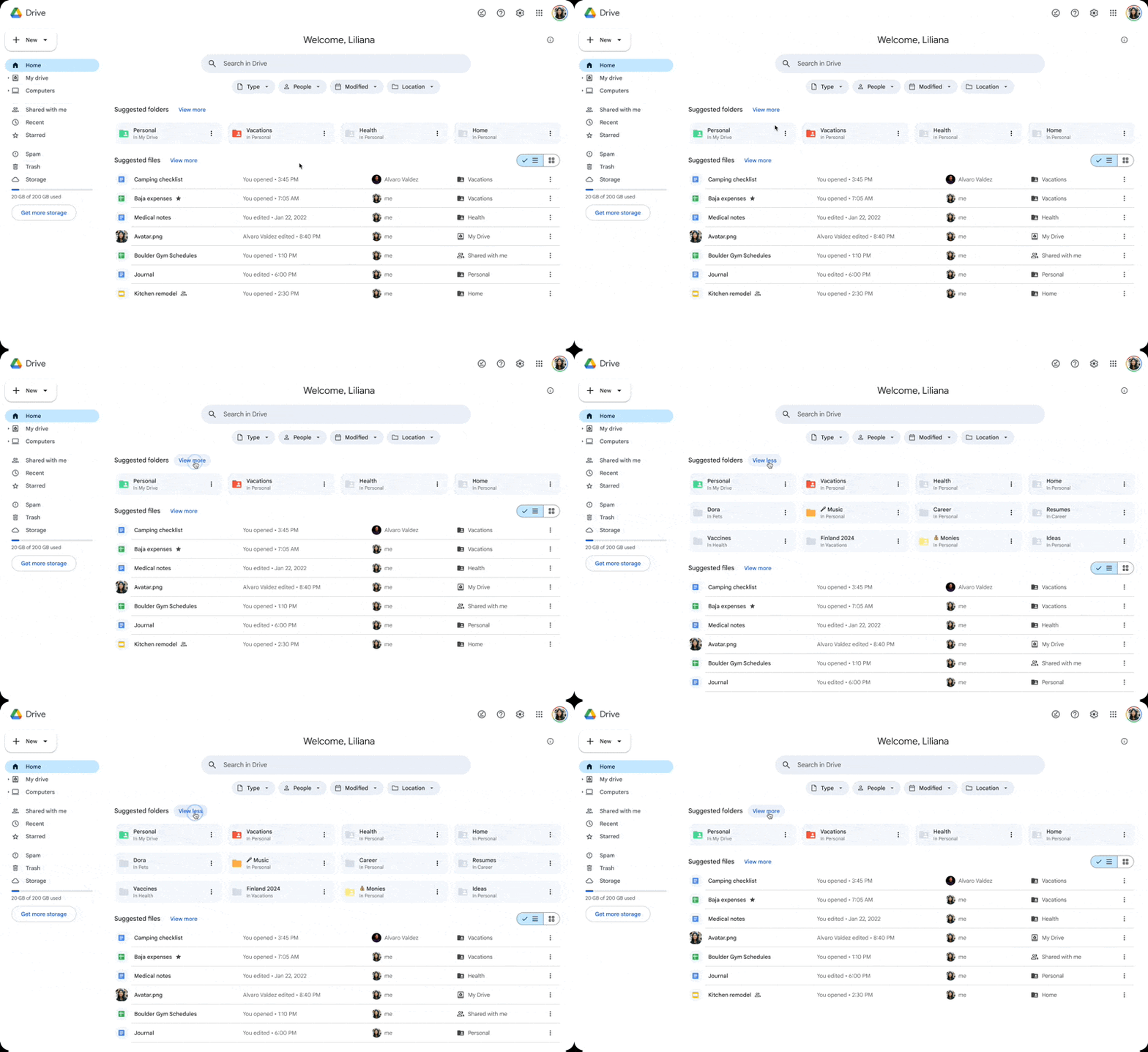
Last year, we introduced a new homepage view in Google Drive that makes it faster and easier for you to find files that matter most. That update included personalized file and folder suggestions with machine learning algorithms that can help you get started quickly.
Starting today, you will see a combined, unified view for file and folder suggestions on the Drive homepage that leverages machine learning to help you find and organize your most relevant content faster and intuitively. More specifically, you’ll notice:
Combined file and folder suggestions: Drive’s homepage shows suggested files and folders, intelligently chosen based on recent activity, sharing patterns, and connected Google Calendar events. Seamless navigation and organization: You can easily switch between viewing additional files or folders, or organize content directly from Home. Enhanced search filters: Search chips allow you to quickly start a search by by file type, people, modification date, and location modification date, location, and people.
Getting started
Admins: There is no admin control for this feature. End users: Up to 6 suggested folders will show at the top of the homepage view of Drive and you can click the “View more” option to see up to 12 total folders. Up to 10 suggested files will show underneath the suggested folders in the collapsed state and up to 30 suggested files will show if you click the “View more” option. You may not see the “View more” option if you do not have additional file or folder suggestions. The homepage view of Drive will be ON by default and can be opted-out by the user. If a user chooses to opt-out, their default page will be My Drive. To opt-out, go to the Settings icon in top right corner > Settings > Start page and select My Drive.
Rollout pace
Availability
Available to all Google Workspace customers, Workspace Individual Subscribers, and users with personal Google accounts
Resources