par trace-admin | 19 novembre 2023 | Nouvelles
Les signatures d'e-mails sont de petits blocs de texte qui sont automatiquement ajoutés à la fin des e-mails sortants.
Voici les étapes à suivre pour créer une signature dans l'espace de travail Google :
- Accès à Gmail:
- Connectez-vous à votre compte Google Workspace.
- Ouvrez Gmail.
- Paramètres d'accès:
- Cliquez sur l'icône en forme de roue dentée dans le coin supérieur droit pour accéder aux "Paramètres".
- Ouvrir les paramètres d'abonnement:
- Dans l'onglet "Paramètres", naviguez jusqu'à la section "Voir tous les paramètres" ou quelque chose de similaire.
- Faites défiler la page jusqu'à ce que vous trouviez la section "Abonnement".
- Créer ou modifier une signature:
- Cliquez sur "Créer un nouvel abonnement" pour ajouter un nouvel abonnement ou sélectionnez un abonnement existant à modifier.
- Dans le champ d'édition, saisissez le texte de votre signature. Vous pouvez inclure votre nom, votre fonction, vos coordonnées, le logo de votre entreprise, des liens vers les médias sociaux, etc.
- Format de la signature:
- Utilisez les options de formatage disponibles (police, taille, couleur, alignement) pour personnaliser l'apparence de votre signature.
- Vous pouvez ajouter des images (telles que des logos) en cliquant sur l'icône d'image dans la barre d'outils de mise en forme.
- Insérer des liens (facultatif):
- Pour ajouter un lien, sélectionnez le texte ou l'image que vous souhaitez lier et cliquez sur l'icône de lien pour ajouter l'URL.
- Enregistrer les modifications:
- Après avoir créé et formaté votre signature, descendez au bas de la page et cliquez sur "Enregistrer les modifications".
- Configurer les signatures par défaut:
- Vous pouvez choisir si vous souhaitez que la signature apparaisse sur tous les nouveaux messages et/ou sur les réponses/transferts.
- Postuler pour Google Workspace Users (Administration):
- Si vous êtes administrateur de Google Workspace, vous pouvez définir des signatures pour les utilisateurs via la console d'administration de Google Workspace. Cela vous permet de créer des signatures uniformes dans l'ensemble de l'organisation.
N'oubliez pas que la signature doit être professionnelle et refléter les informations que vous souhaitez communiquer de manière cohérente dans tous vos messages électroniques.

par trace-admin | 26 septembre 2023 | Configuration de l'espace de travail Google
La configuration de l'enregistrement SPF (Sender Policy Framework) est essentielle pour valider et authentifier les serveurs de messagerie autorisés à envoyer des courriels au nom de votre domaine. Cela permet d'éviter la falsification des e-mails et les activités de phishing. Voici comment configurer un enregistrement SPF pour Google Workspace :
Configurer l'enregistrement SPF pour Google Workspace :
- Accédez à votre fournisseur de domaineConnectez-vous au compte où vous avez enregistré votre domaine. Il peut s'agir d'organisations telles que GoDaddy, Namecheap ou autres.
- Aller à la gestion DNSPour cela, il faut trouver et accéder à la section de gestion du DNS ou à quelque chose qui porte un nom similaire.
- Trouver la section Enregistrements TXTDans la gestion du DNS, trouvez la section où vous pouvez modifier ou ajouter des enregistrements TXT. Le SPF est défini comme un enregistrement TXT.
- Ajouter l'enregistrement SPF de Google WorkspaceSi vous n'avez pas encore d'enregistrement SPF, vous devez en créer un. Si vous avez déjà un enregistrement SPF, vous devez le modifier pour inclure les serveurs Google Workspace. Pour configurer SPF pour Google Workspace, ajoutez (ou modifiez) l'enregistrement TXT avec la valeur suivante :
v=spf1 inclure:_spf.google.com ~all
v=spf1Indique le début de l'enregistrement SPF.include:_spf.google.com: Autorise les serveurs associés au domaine _spf.google.com (les serveurs de messagerie de Google) pour envoyer des courriels au nom de votre domaine.~tousCela signifie que tout serveur qui n'est pas spécifié dans la règle SPF (dans ce cas, les serveurs de Google) doit être traité avec méfiance, mais qu'il n'est pas strictement interdit d'envoyer des courriels.
- Enregistrer les modificationsAprès avoir ajouté ou modifié l'enregistrement, veillez à sauvegarder ou à confirmer les modifications.

par trace-admin | 26 septembre 2023 | Configuration de l'espace de travail Google
Le Enregistrements MX (Mail Exchange) sont une partie essentielle des enregistrements DNS (Domain Name System) d'un domaine. Ils indiquent les serveurs de messagerie responsables de la réception des messages électroniques pour un domaine spécifique.
En termes plus simples, lorsque quelqu'un envoie un courrier électronique à "[email protected]"les serveurs de messagerie qui envoient ce message consultent les enregistrements MX de "votredomaine.com" pour déterminer à quel(s) serveur(s) ils doivent transférer ce message.
Dans le contexte de la configuration du courrier électronique, les enregistrements MX sont fondamentaux, car ils garantissent que les courriels envoyés à votre domaine sont correctement dirigés vers les serveurs de courrier électronique appropriés. Si les enregistrements MX sont mal configurés ou manquants, les courriels destinés à votre domaine risquent de ne pas être délivrés ou d'être délivrés au mauvais serveur.
Configurez les enregistrements MX pour Google Workspace :
- Accédez à votre fournisseur de domaineConnectez-vous au compte où vous avez enregistré votre domaine.
- Accès à la gestion du DNSTrouvez et accédez à la section de gestion DNS ou quelque chose de similaire.
- Localisez la section Enregistrements MXDans la gestion DNS, vous trouverez la section où vous pouvez modifier ou ajouter des enregistrements MX.
- Supprimer les enregistrements MX existantsSi vous avez déjà défini des enregistrements MX, il est recommandé de les supprimer afin d'éviter les conflits d'acheminement du courrier.
- Ajouter des enregistrements MX à partir de l'espace de travail GoogleVous devez entrer une série d'adresses fournies par Google. Les valeurs à ajouter sont les suivantes :
- Priorité : 1, Adresse :
ASPMX.L.GOOGLE.COM
- Priorité : 5, Adresse :
ALT1.ASPMX.L.GOOGLE.COM
- Priorité : 5, Adresse :
ALT2.ASPMX.L.GOOGLE.COM
- Priorité : 10, Adresse :
ALT3.ASPMX.L.GOOGLE.COM
- Priorité : 10, Adresse :
ALT4.ASPMX.L.GOOGLE.COM
Veillez à saisir ces valeurs exactement comme elles sont indiquées, y compris les priorités.
- Enregistrer les modificationsAprès avoir ajouté tous les enregistrements, veillez à sauvegarder ou à confirmer les modifications.
- Vérifier la configuration dans l'espace de travail GoogleRetournez à votre compte Google Workspace et allez à la section où vous avez commencé le processus de configuration des enregistrements MX. Vous pouvez y vérifier que les enregistrements ont été configurés correctement.
- Attendez-leN'oubliez pas que les modifications apportées aux enregistrements DNS peuvent prendre de quelques heures à 48 heures pour se propager sur l'internet, de sorte que vous ne verrez peut-être pas les résultats immédiatement.
Une fois ces étapes terminées, les e-mails envoyés à votre domaine seront acheminés via les serveurs de Google Workspace.
par | 17 novembre 2023 | Nouvelles
Ce qui change
En collaboration avec
récentes mises à jour de la recherche dans Google ChatNous introduisons des suggestions de recherche améliorées, une fonctionnalité déjà disponible sur le site de la
mobilequi vous aide à trouver le bon message, la bonne personne, le bon fichier ou le bon espace dans Chat sur le web.
Lorsque vous effectuez une recherche dans le Chat, vous verrez désormais des suggestions de requêtes basées sur l'historique des activités de recherche, triées par pertinence. La première suggestion apparaîtra également dans le champ de recherche et vous pourrez appuyer sur "Tab" pour remplir automatiquement la requête. Vous pouvez également supprimer une requête suggérée en la survolant et en cliquant sur l'icône "x" qui se trouve à côté.
Pour commencer
Administrateurs : il n'y a pas de contrôle administratif pour cette fonctionnalité. Utilisateurs finaux : Consultez le centre d'aide pour en savoir plus sur les fonctionnalités suivantes
recherche de messages Google Chat. Rythme de déploiement
Disponibilité
Disponible pour tous les clients de Google Workspace et les utilisateurs disposant d'un compte Google personnel.
Ressources
par | 17 novembre 2023 | Nouvelles
4 Nouvelles mises à jour
Sauf indication contraire, les fonctionnalités ci-dessous sont disponibles pour tous les clients de Google Workspace et sont entièrement lancées ou en cours de déploiement. Les déploiements ne devraient pas prendre plus de 15 jours ouvrables s'ils sont lancés à la fois pour les clients de Google Workspace et pour les clients de Google Workspace. Mise à disposition rapide et programmée en même temps. Si ce n'est pas le cas, chaque étape du déploiement ne devrait pas prendre plus de 15 jours ouvrables.
Améliorer l'utilisation de Google Drive sur les appareils Android à grand écran
Tirer parti des améliorations apportées à l'espace de travail Google
expérience sur les appareils Android à grand écranNous sommes heureux d'annoncer de nouvelles améliorations qui rapprochent l'expérience sur tablette de l'expérience sur le web. Plus précisément, vous remarquerez :
Au-dessus de la liste principale des documents, les utilisateurs verront désormais une hiérarchie de dossiers accessible pour leur vue actuelle. Cela permet à l'utilisateur de savoir où il se trouve dans Drive et de sortir facilement des dossiers imbriqués. Des colonnes de données par fichier indiquent la date de la dernière modification d'un fichier et la quantité d'espace de stockage utilisée par chaque fichier. Une palette de couleurs qui correspond à l'image de marque de
Google Material Design 3 lignes directrices. La mise en place de
Domaines à libération rapide maintenant ; lancer à
Domaines de diffusion prévus prévue pour le 27 novembre 2023. | Disponible pour tous les clients de Google Workspace et les utilisateurs disposant d'un compte Google personnel. | En savoir plus sur l'utilisation de Google Workspace.
Google Drive.
Extension des événements du journal Google Drive à d'autres éditions de Google Workspace
Convertir facilement un texte hyperlié en puces intelligentes à l'aide de la touche de tabulation dans Google Sheets
En s'appuyant sur la
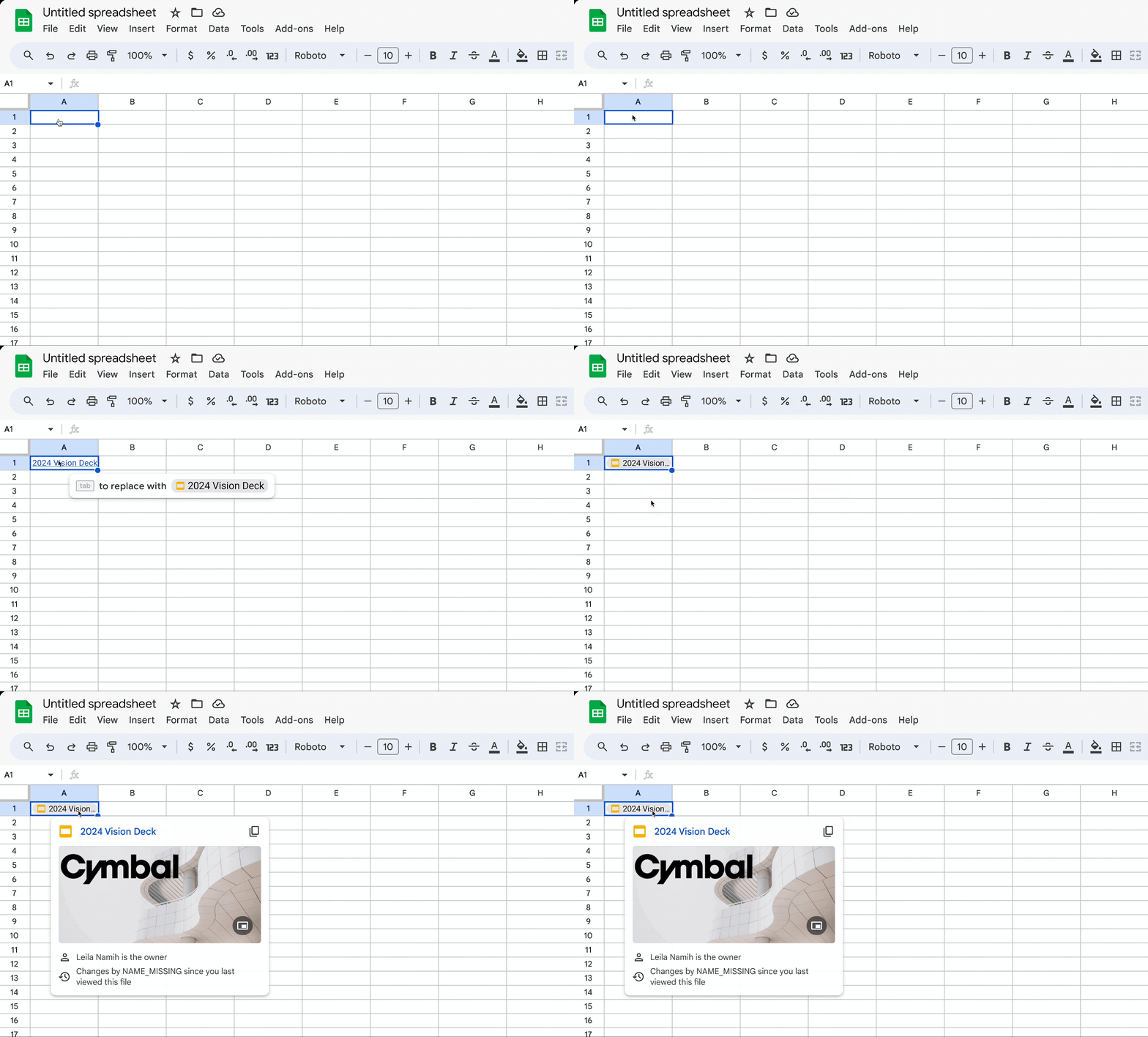
pour convertir Grâce à la nouvelle fonctionnalité de Google Sheets, lorsque votre texte hyperlié correspond au texte d'une puce dans Sheets, vous serez désormais invité à convertir un fichier inséré, une personne, un événement de calendrier, un lien Youtube ou un lien vers un lieu en puce. Par exemple, si le texte hyperlié est un nom de fichier, Sheets recommandera automatiquement de le convertir en puce intelligente.
Domaines de la mise à disposition rapide et de la mise à disposition programmée à un rythme progressif (jusqu'à 15 jours pour la visibilité des fonctionnalités). | Disponible pour tous les clients de Google Workspace et les utilisateurs disposant d'un compte Google personnel. | En savoir plus sur
insertion de puces dans Google Sheets.
Plus de langues disponibles pour les sous-titres de Google Meet
Vous pouvez désormais utiliser les sous-titres dans Google Meet en finnois et en hébreu. Vous pouvez utiliser les sous-titres pour afficher les sous-titres pendant que tout le monde parle au cours d'une réunion. Comme il s'agit d'une nouvelle langue prise en charge, elle sera signalée par la mention "bêta", car nous continuons à optimiser les performances. Consultez notre centre d'aide pour obtenir une liste complète des langues prises en charge.
Liste des langues prises en charge pour les sous-titres dans Meet. Nous avons également supprimé la mention "bêta" pour les langues suivantes, car elles ont été validées et ne sont plus en phase bêta :
Anglais (Royaume-Uni) Français (Canada) Thaïlandais Vietnamien Polonais Roumain Turc Disponible dès maintenant pour tous les clients et utilisateurs de Google Workspace disposant d'un compte personnel Google.
Utilisation des légendes dans Google Meet.
Annonces précédentes
Les annonces ci-dessous ont été publiées sur le blog Workspace Updates en début de semaine. Veuillez vous référer aux articles de blog originaux pour plus de détails.
Agir sur les demandes et les commentaires Google Drive directement dans Google Chat
Puces intelligentes AppSheet pour Google Docs
Vous pouvez désormais insérer des puces intelligentes pour le contenu de la feuille de calcul dans les documents, ce qui vous permet d'accéder aux données de la feuille de calcul directement dans les documents.
Fiche d'application puces intelligentes.
Afficher des listes de tâches en plein écran sur Google Calendar
Mettre en avant les messages importants dans Google Chat
Lire et écrire des événements en dehors du bureau et de l'heure de travail à l'aide de l'API Calendrier
Outre la lecture et l'écriture des données relatives au lieu de travail, nous étendons les fonctionnalités de l'API Calendrier aux données relatives à l'absence du bureau et au temps de travail.
utiliser l'API Calendrier.
Amélioration des suggestions de recherche dans Google Chat web
Domaines à libération rapide :
Domaines de libération programmée :
Domaines de la mise à disposition rapide et de la mise à disposition programmée :
par | 17 novembre 2023 | Nouvelles
Ce qui change
Outre la lecture et l'écriture des données relatives au lieu de travail, nous étendons les fonctionnalités de l'API Calendrier aux données relatives à l'absence du bureau et aux heures de travail. Les développeurs peuvent utiliser l'API pour lire et écrire ces informations et synchroniser la disponibilité des utilisateurs avec des systèmes externes. Par exemple, vous pouvez utiliser l'API en conjonction avec des systèmes de ressources humaines pour ajouter automatiquement des entrées OOO au calendrier d'un utilisateur lorsqu'il soumet des congés. L'API peut également être utilisée pour bloquer automatiquement des plages horaires dans le calendrier d'un utilisateur afin qu'il puisse suivre des cours de formation.
La lecture et l'écriture en dehors du bureau et du temps de concentration sont utiles dans diverses situations, telles que : la création et la mise à jour d'événements en dehors du bureau et du temps de concentration (
Événements.Insérer,
Événements.Mise à jour,
Patch.événements). Spécification de fonctions spécifiques à OOO et à Focus Time, telles que le refus automatique de réunions et la définition d'un statut "ne pas déranger". Sélection de n'importe quelle combinaison de types d'événements à lire à partir d'un calendrier (
Liste des événements).
En outre, la lecture et la rédaction de ces informations évitent aux utilisateurs d'avoir à saisir les mêmes informations dans plusieurs systèmes, ce qui contribue à réduire le nombre de changements manuels.
Qui est concerné ?
Développeurs
Pourquoi l'utiliser ?
Le soutien aux événements en dehors du bureau et au moment de la concentration rejoint le soutien au lieu de travail, qui était le plus important.
annoncée au début de l'annéeL'API de l'agenda a été complétée par l'API de l'agenda de l'entreprise. Chaque type d'événement spécifique peut être synchronisé dans l'ensemble de l'écosystème informatique de votre organisation, ce qui permet de créer des parcours utilisateurs transparents et de connecter les utilisateurs aux ressources et les uns aux autres. Cela inclut des éléments tels que :
Cartographier les données relatives au lieu de travail pour mieux adapter les ressources sur place et mettre à jour d'autres surfaces tierces, telles que les outils de réservation de hot desk. Bloquer automatiquement les périodes d'inactivité en fonction des demandes de congés ou de congés payés, bloquer les événements de temps de concentration pour donner aux utilisateurs le temps de suivre les programmes d'intégration ou d'autres programmes de formation de l'entreprise.
Détails supplémentaires
Avant cette mise à jour, si vous demandiez à lire le calendrier d'un utilisateur via l'API v3, les événements "out of office" et "focus time" étaient renvoyés avec
[email protected] dans le champ organisateur, mais sans leurs caractéristiques spécifiques. Avec cette mise à jour, ces événements seront renvoyés avec toutes leurs propriétés et l'utilisateur spécifique en tant qu'organisateur. Veuillez vérifier votre code pour vous assurer qu'il ne fait pas de suppositions implicites sur les valeurs de retour de l'API précédente, et utilisez la fonction
type d'événement paramètre permettant d'effectuer différentes opérations avec les événements réguliers, OOO, Focus Time ou Working Location
Pour commencer
Rythme de déploiement
Domaines de la mise à disposition rapide et de la mise à disposition programméeDéploiement prolongé (potentiellement plus de 15 jours pour la visibilité des fonctionnalités) à partir du 16 novembre 2023
Disponibilité
L'API Calendrier est accessible à tous.
Les événements en dehors du bureau sont disponibles pour les clients Google Workspace Essentials, Enterprise Essentials, Frontline, Enterprise Starter, Enterprise Standard, Enterprise Plus, Nonprofits, Business Starter, Business Standard, Business Plus, Education Fundamentals, Education Standard et Education Plus.
Les événements Focus Time sont accessibles aux clients de Google Workspace Enterprise Starter, Enterprise Standard, Enterprise Plus, Nonprofits, Business Standard, Business Plus, Education Fundamentals, Education Standard et Education Plus.
Ressources
par | 16 novembre 2023 | Nouvelles
Ce qui change
Suite à l'annonce récente de
domicile et mentions dans Google ChatNous sommes ravis de vous présenter "starred on web", un raccourci supplémentaire dans le panneau de navigation redessiné qui vous aide à rester au courant de vos messages les plus importants dans Chat.
Qui est concerné ?
Utilisateurs finaux
Pourquoi l'utiliser ?
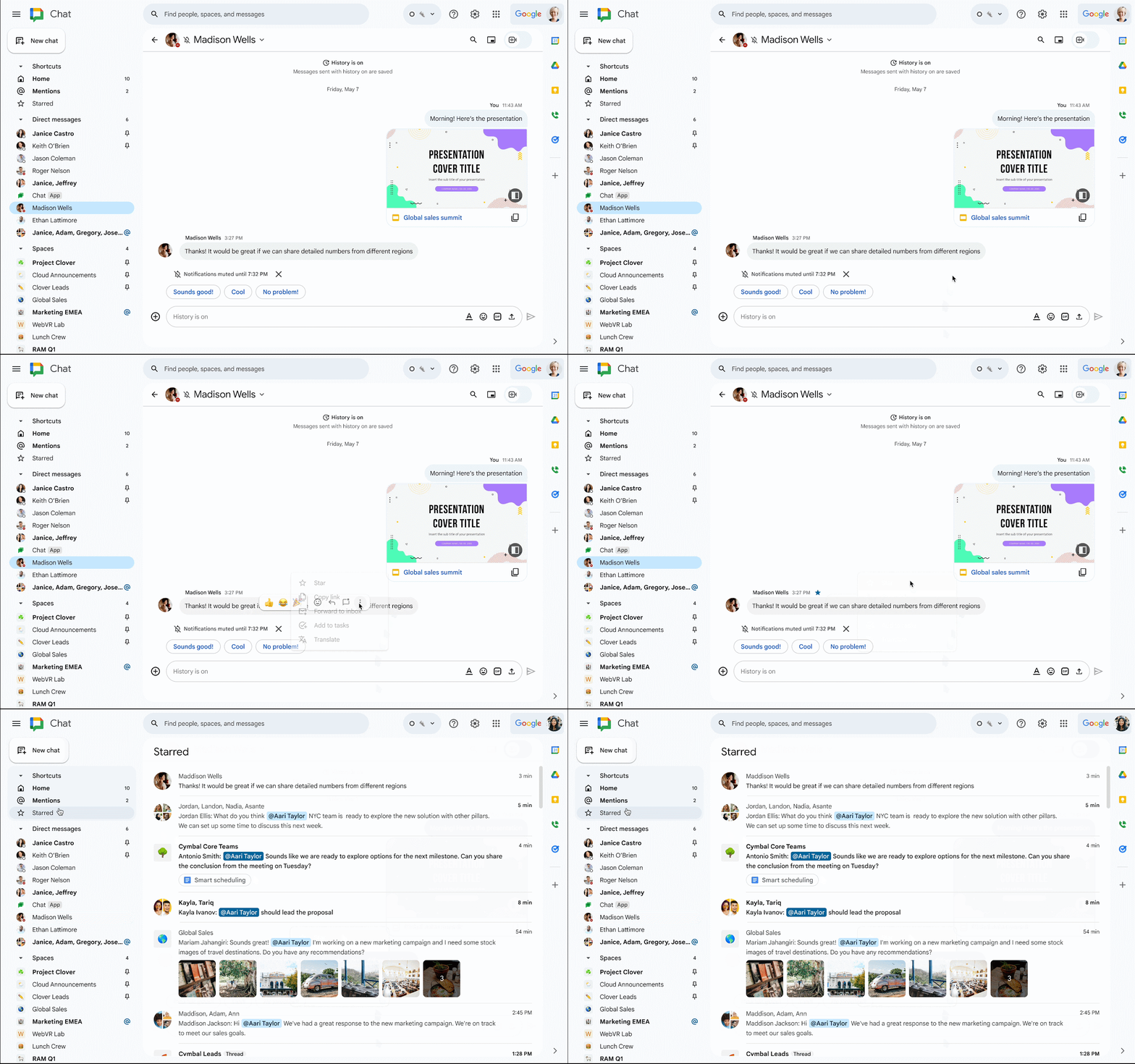
Cette fonction vous permet de "marquer d'un astérisque" n'importe quel message dans Chat afin d'y accéder facilement via le raccourci marqué d'un astérisque dans le panneau de navigation, ce qui peut s'avérer utile lorsque vous devez revenir sur un message ultérieurement.
Détails supplémentaires
La mise en vedette des messages n'est pas disponible dans les espaces existants organisés par thème de conversation (anciens fils de discussion).
Pour commencer
Administrateurs : Il n'y a pas de contrôle administratif pour cette fonctionnalité. Utilisateurs finaux : Pour marquer un message d'un astérisque, survolez le message et cliquez sur l'icône de l'étoile ou cliquez sur le menu à trois points pour afficher l'option de marquage d'un astérisque. Les messages marqués d'une étoile seront disponibles sur les téléphones mobiles en 2024. Visitez le centre d'aide pour en savoir plus
Comment étoiler les messages dans le Chat.
Rythme de déploiement
Domaines à libération rapideDéploiement prolongé (potentiellement plus de 15 jours pour la visibilité des fonctionnalités) à partir du 16 novembre 2023
Domaines de diffusion prévusDéploiement prolongé (potentiellement plus de 15 jours pour la visibilité des fonctionnalités) à partir du 30 novembre 2023
Disponibilité
Disponible pour tous les clients de Google Workspace et les utilisateurs disposant d'un compte Google personnel.
Ressources
par | 16 novembre 2023 | Nouvelles
Ce qui change
Nous avons récemment achevé la migration de
Rappels de Google Agenda et de Google Assistant vers Google Tâches afin de faciliter la visualisation et la gestion de toutes vos tâches en un seul endroit. Pour aller plus loin, nous vous offrons une expérience de bureau en plein écran pour visualiser toutes les tâches ensemble. À partir d'aujourd'hui, vous pourrez voir toutes vos tâches et listes de tâches en plein écran sur Calendar web.
Qui est concerné ?
Utilisateurs finaux
Pourquoi c'est important
En plus d'une présentation optimisée du bureau, cette mise à jour vous permet de garder le contrôle de vos tâches et de les organiser plus facilement.
Pour commencer
Administrateurs : il n'y a pas de contrôle administratif pour cette fonctionnalité. Utilisateurs finaux : Pour afficher les tâches en plein écran sur Calendar web, allez à l'adresse suivante
Calendrier.google.com > cliquez sur l'icône de la tâche dans la barre supérieure. Visitez le centre d'aide pour en savoir plus sur
Tâches Google.
Rythme de déploiement
Disponibilité
Disponible pour tous les clients de Google Workspace et les utilisateurs disposant d'un compte Google personnel.
Ressources
par | 15 novembre 2023 | Nouvelles
Ce qui change
Dans Google Docs, vous pouvez
insèrent déjà des puces électroniques pour les fichiers Docs, Sheets et Slides, des puces de date, des puces d'événements du calendrier, etc. À partir d'aujourd'hui, vous pouvez insérer des puces intelligentes pour le contenu des feuilles de calcul. Ces puces intelligentes vous permettent d'accéder aux données de la feuille de calcul directement dans Docs - vous serez en mesure de visualiser et d'agir sur les données, y compris de déclencher des automatismes, sans avoir à quitter Docs.
Rythme de déploiement
Cette fonctionnalité est disponible dès maintenant.
Disponibilité
Disponible pour les clients de Google Workspace disposant de licences AppSheet.
Ressources
par | 15 novembre 2023 | Nouvelles
Ce qui change
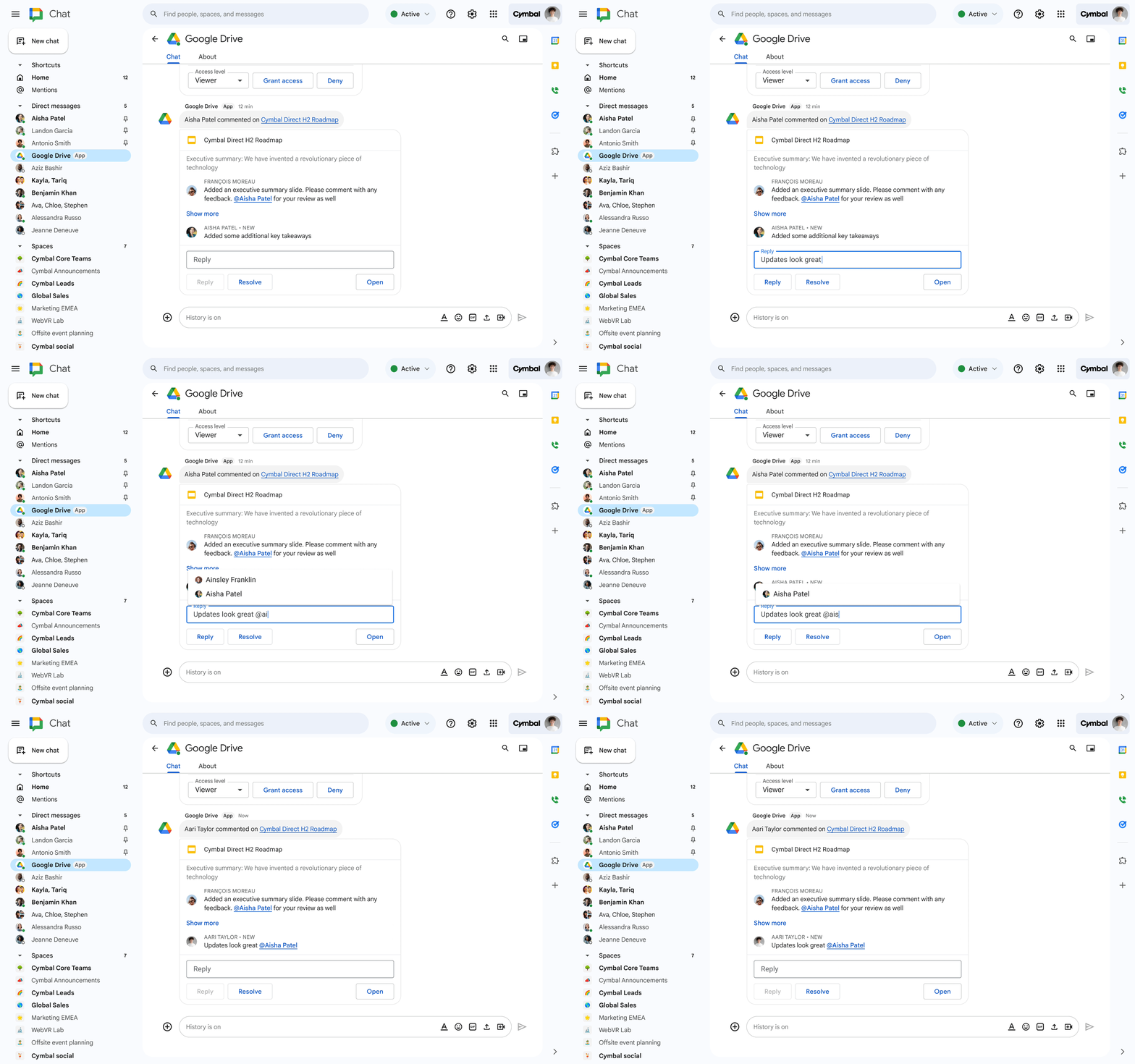
Actuellement, vous pouvez utiliser le Google Drive Chat app pour recevoir des notifications en lecture seule dans Chat concernant l'activité dans Drive, comme les commentaires et les demandes de partage. À partir d'aujourd'hui, nous apportons les améliorations suivantes :
Répondre aux commentaires et les résoudre dans Google Docs, Sheets et Slides directement à partir de Chat Afficher une partie plus importante du fil de commentaires afin d'avoir plus de contexte lorsque vous répondez @mentionner vos collègues facilement lorsque vous répondez aux commentaires Avec ces mises à jour, vous pouvez collaborer plus facilement sur Docs, Sheets et Slides sans jamais quitter Chat.
Pour commencer
Rythme de déploiement
Disponibilité
Disponible pour tous les clients de Google Workspace et les utilisateurs disposant d'un compte Google personnel.
Ressources